Start with Demo Data
The fastest way to see what WolfieAssist can do is the built-in Demo: open the app, choose Explore with Demo Data, and a full sample practice — clients, patients, invoices, appointments, and inventory — loads on the iPad with nothing to configure. Nothing you do in Demo touches a real clinic's data.
When you're ready to work with a real practice, tap Connect to Clinic… from the mode picker:
- Mode A (Wi‑Fi sync) — find a Mac running WolfiePIMS on the same Wi‑Fi and sync to it.
- Mode C (live server) — connect straight to the practice's server, the same way a second Mac at the clinic would.
migrate.wolfiepims.net.Sample Printouts
Real PDFs generated by WolfieAssist itself from Demo data — not mockups. Captured by the same automated Simulator tour that takes the screenshots above.
Getting Started
Getting Started
WolfieAssist is the iPad edition of WolfiePIMS. Explore with Demo Data first, or Connect to Clinic to sync with, or connect live to, the practice's Mac.
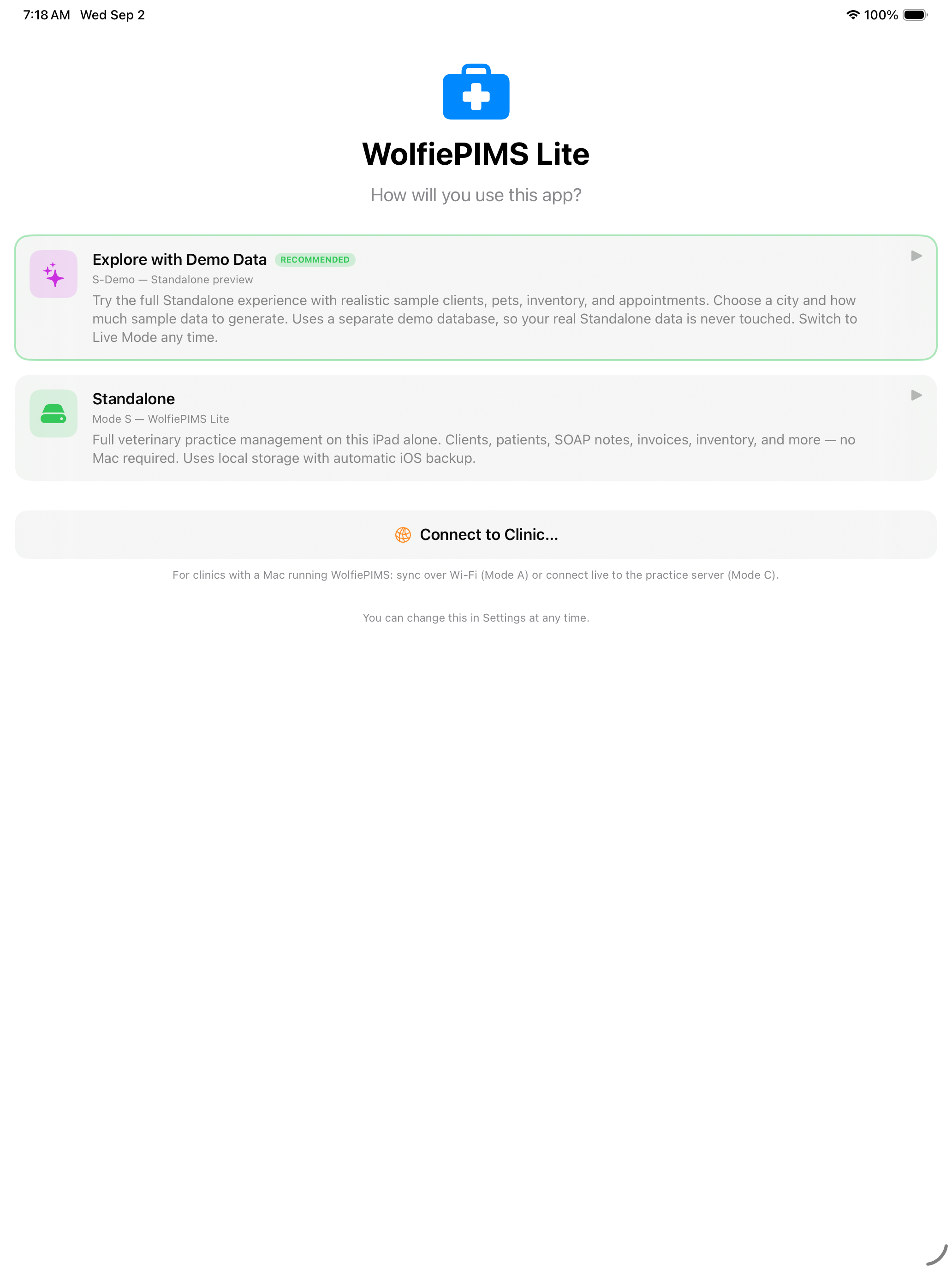
Modes: Standalone, Wi-Fi Sync, Live Server
Standalone keeps everything on this iPad (no Mac needed). Mode A syncs over Wi‑Fi with a Mac running WolfiePIMS. Mode C connects live to the Practice Server, the same way a second Mac would.
Daily Work
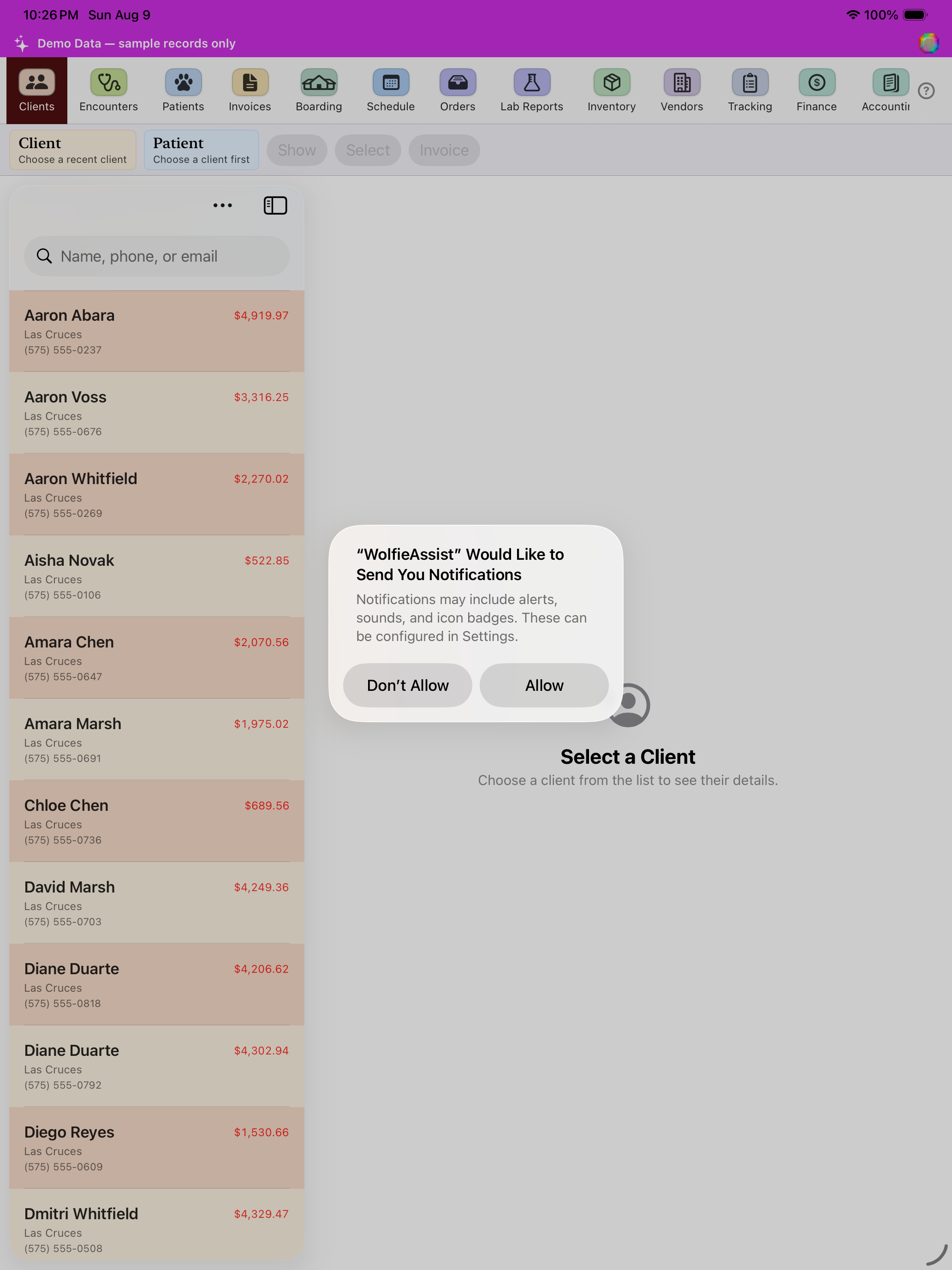
Clients
Every client on file, searchable by name, phone, or email. Tap a client to see their patients, invoices, and contact details.
Encounters (SOAP / HEAP)
SOAP / HEAP notes across every patient, newest first. Start a new encounter from here or from a patient's record.
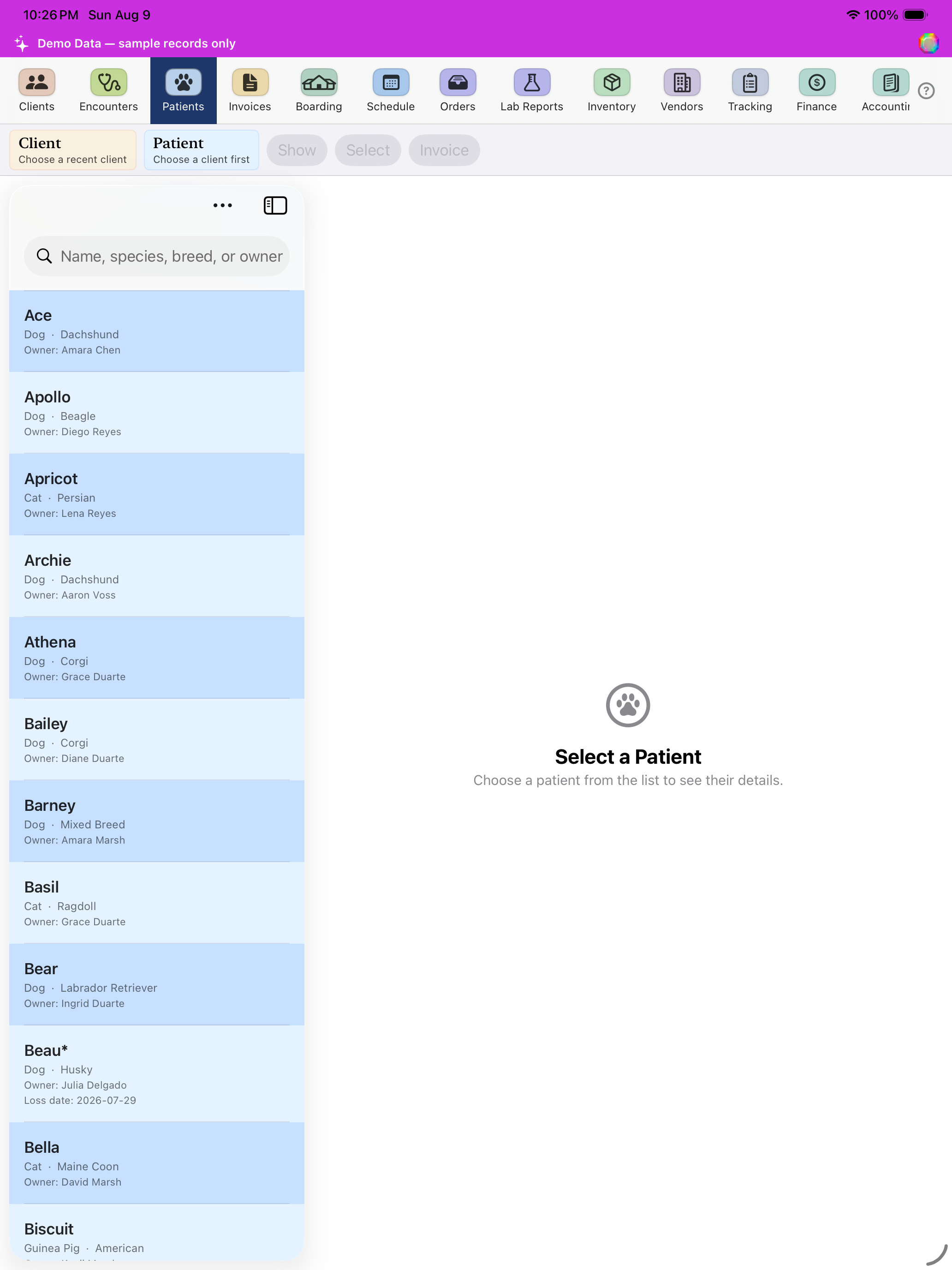
Patients
Every patient across every owner. Search by name or species; tap a patient for their chart, timeline, and reminders.
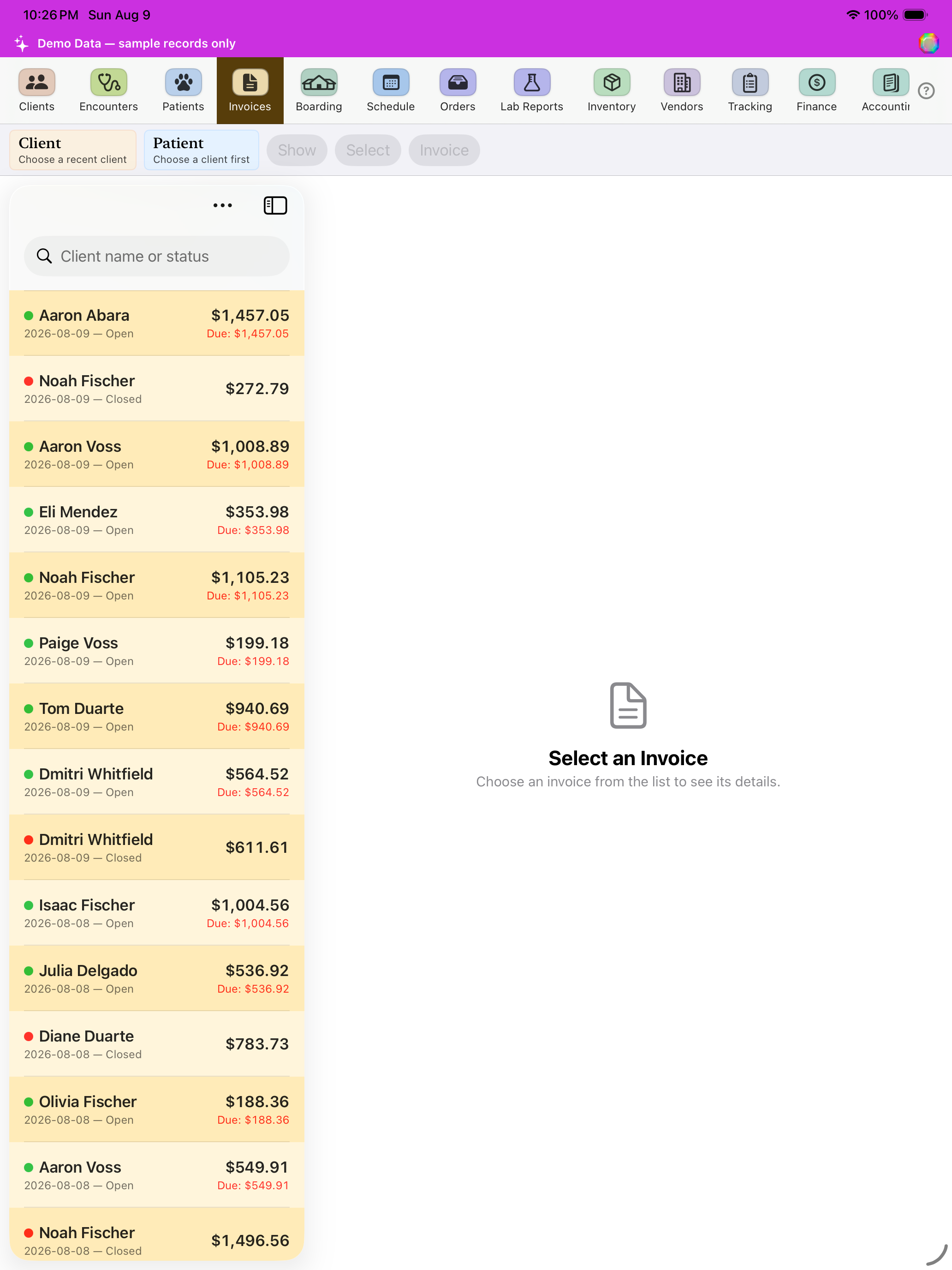
Invoices
Every invoice, open and closed. Start a Counter Sale for a walk-in with no client on file, or pick a client to invoice.
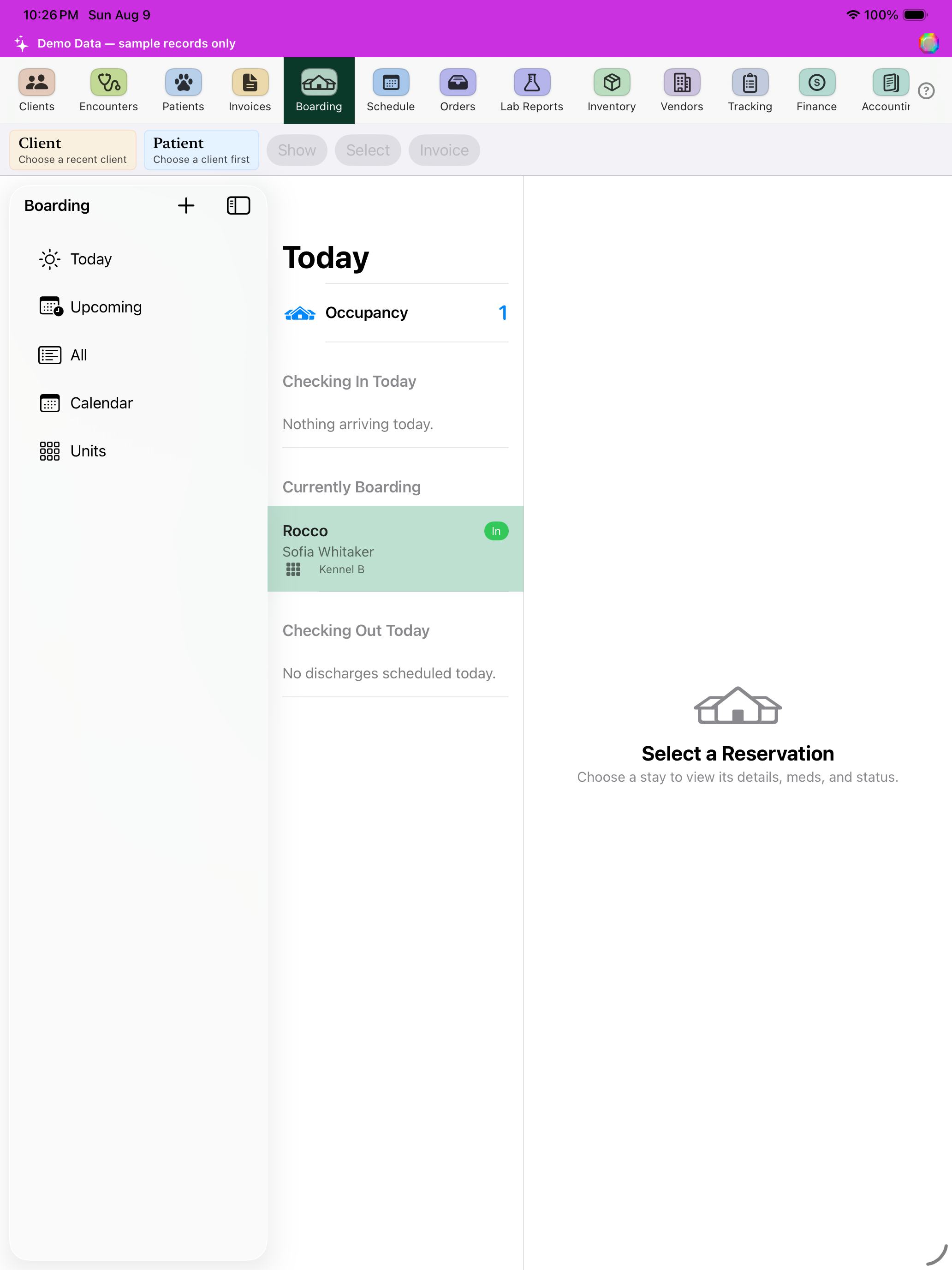
Boarding
Today's boarding runs, reservations, and unit occupancy. Discharge and send-home live here too.
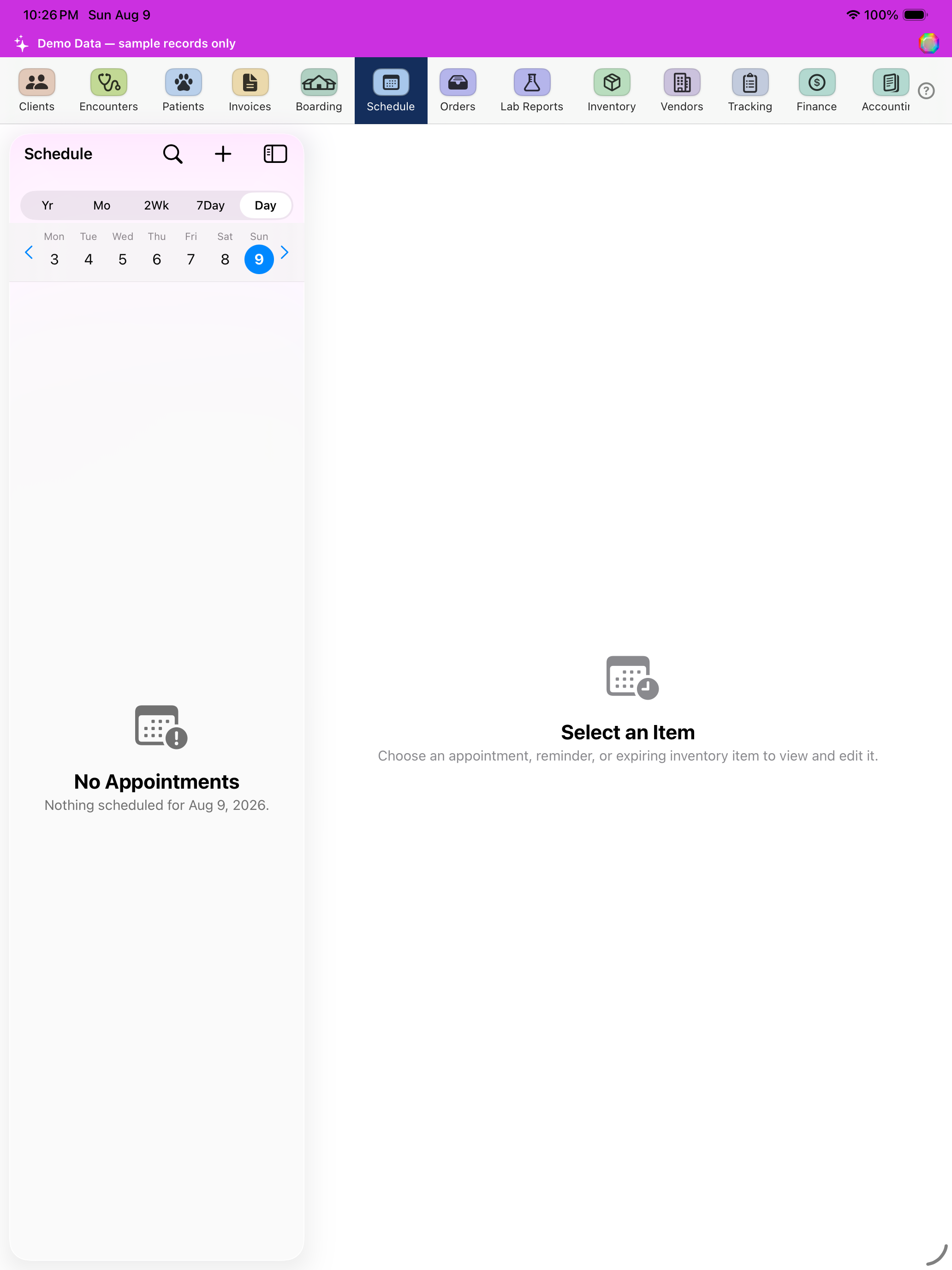
Calendar
The appointment calendar. Tap a slot to book, tap an existing appointment to open it. Day, 7-day, and 14-day views show clinic hours, reminders, and inventory expirations on the day grid.
Lab Orders
Incoming lab orders waiting to be sent or matched to a patient.
Lab Reports
Completed lab results, matched to patients. IDEXX results that need manual matching show up under Unmatched Labs.
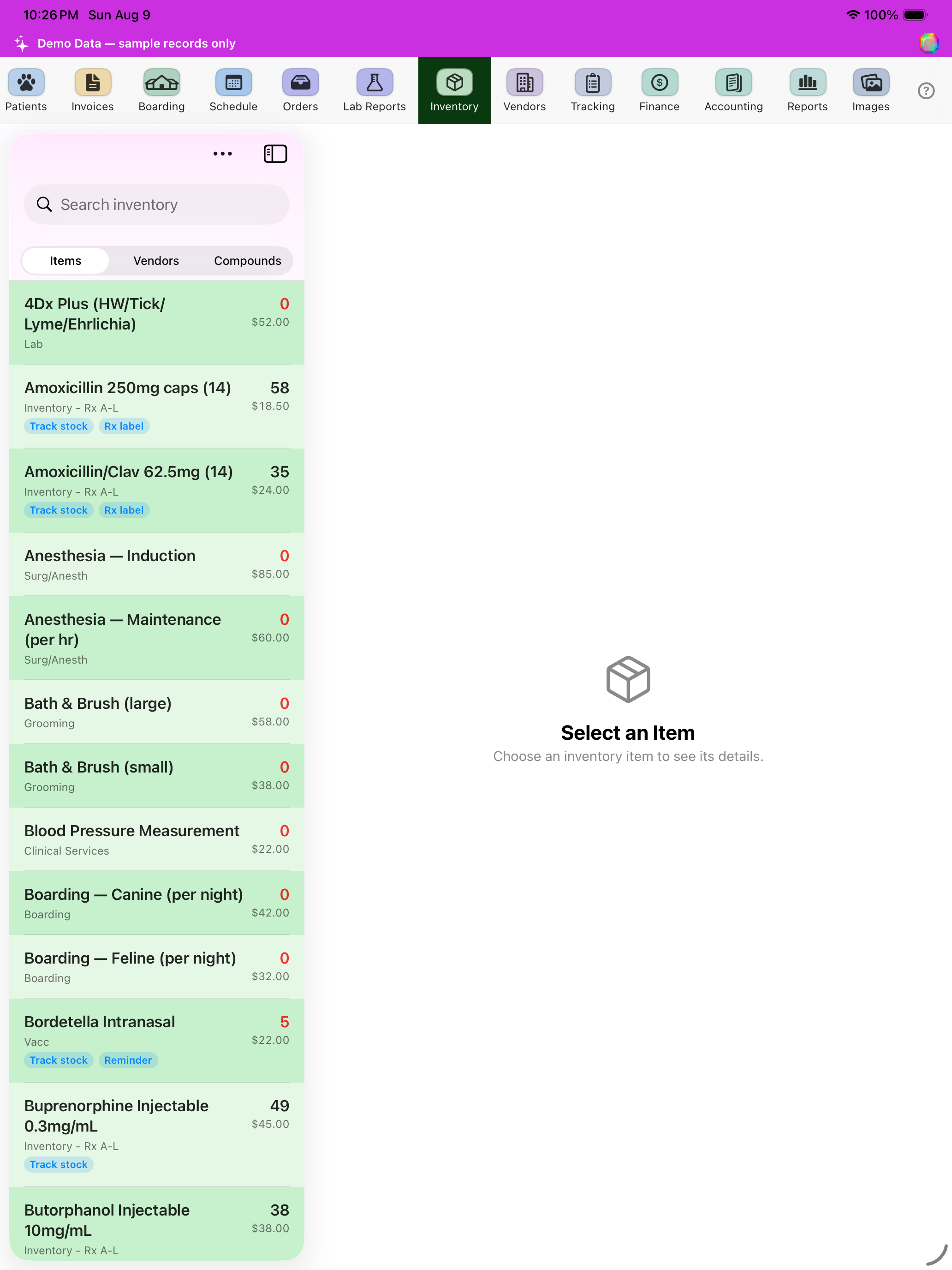
Inventory
Every inventory item: stock counts, pricing, and reorder status. Adjustments and receiving live here.
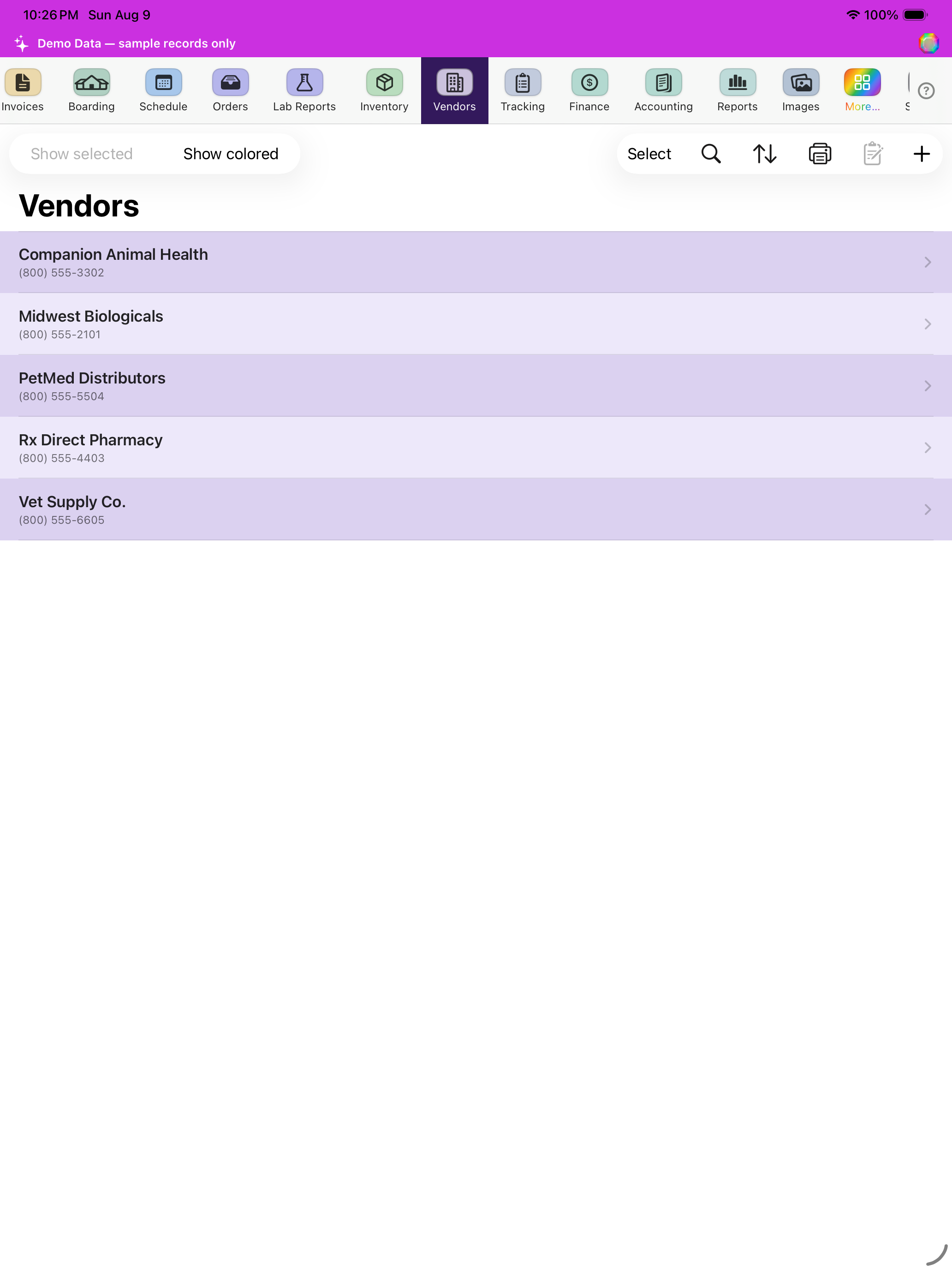
Vendors
Every vendor on file, for ordering and inventory receiving.
Tracking / Controlled Substances
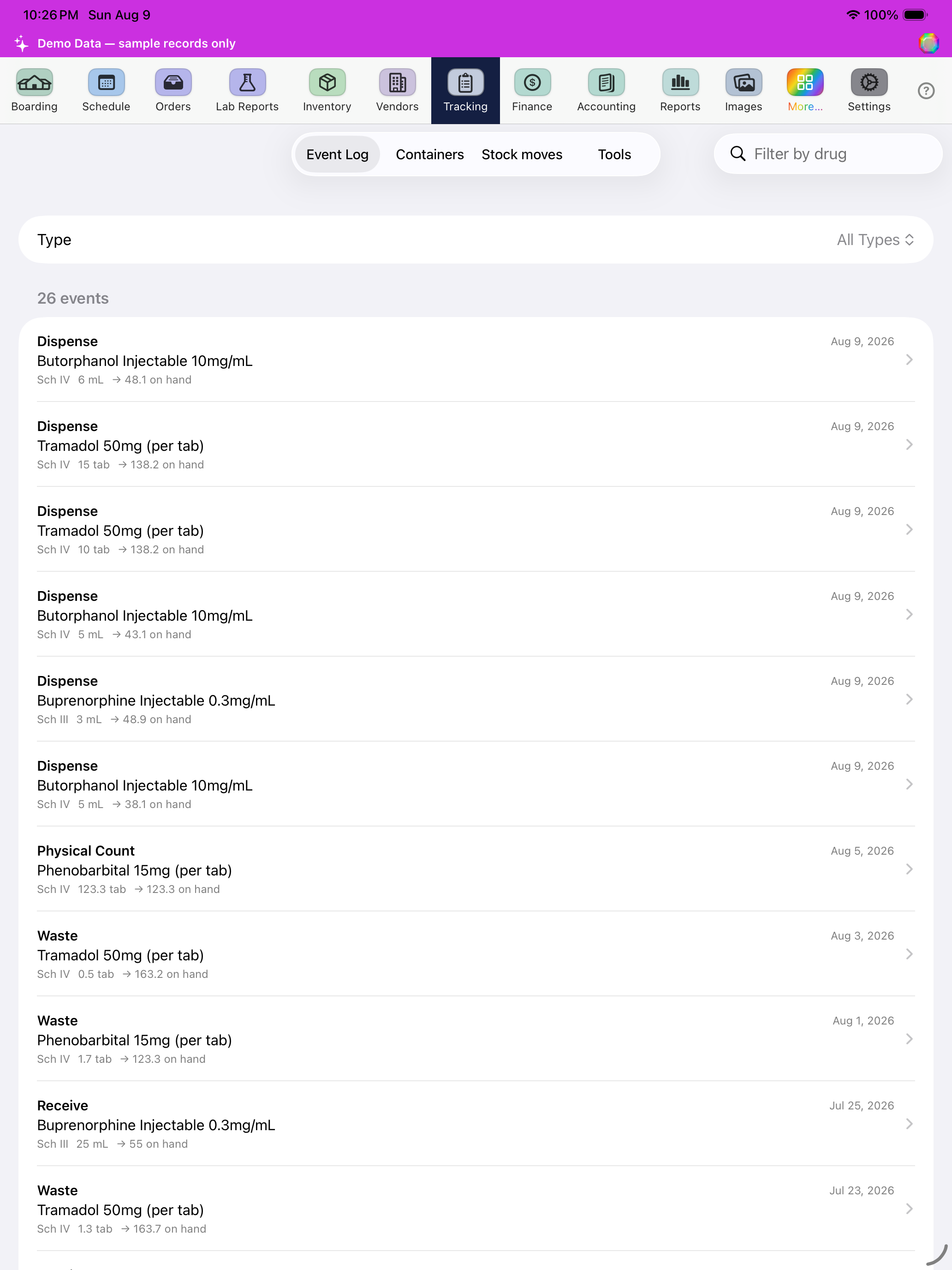
Controlled-substance event log, containers, and stock moves. Reconciliation, DEA form helpers, and compounded-batch tools are the extra icons at the top of this tab.
SOAP Notes
A SOAP note captures one visit: Subjective, Objective, Assessment, Plan. Start one from a patient's chart or from Encounters.
Money & Records
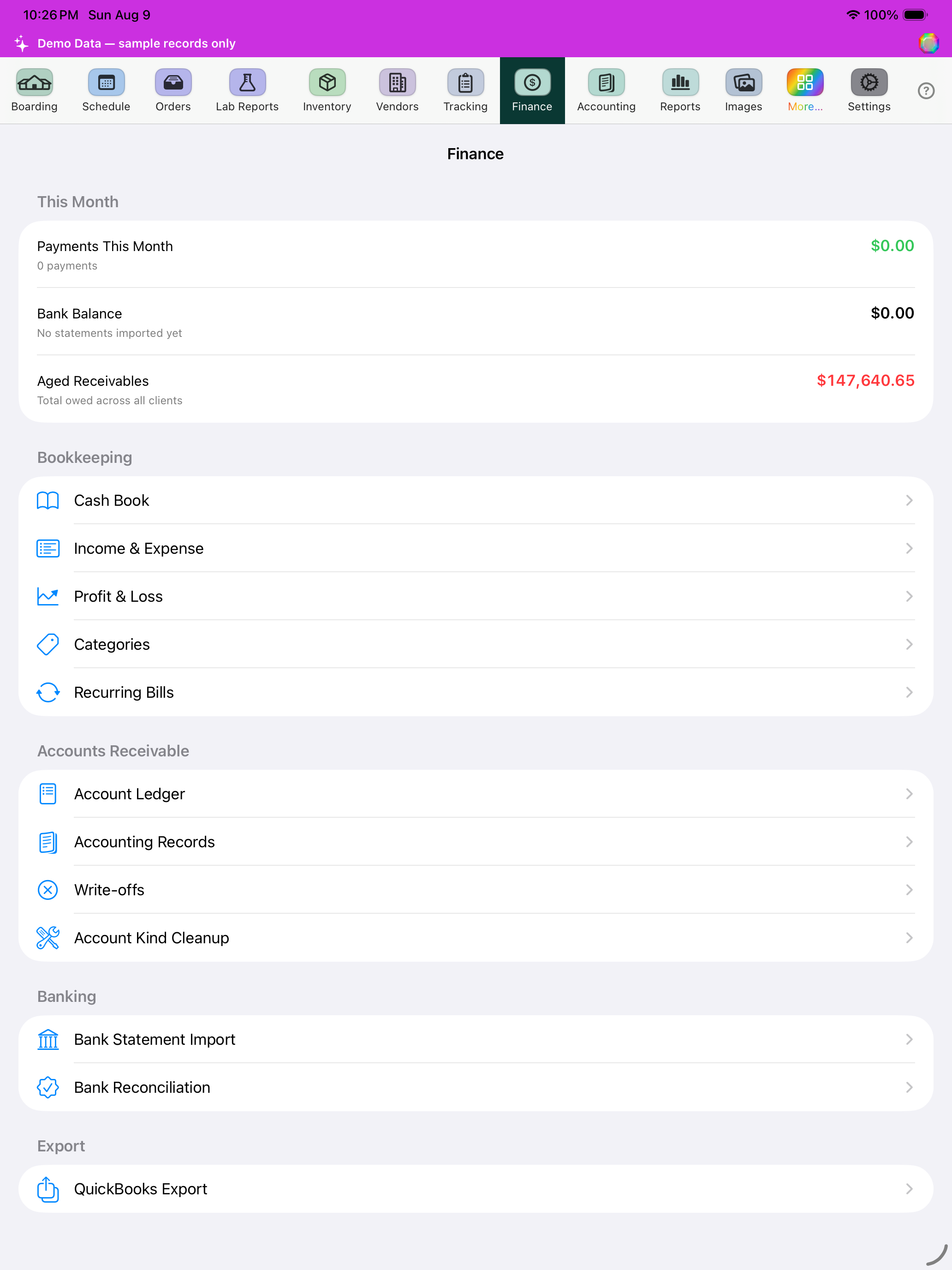
Finance
Financial Calendar: closed invoices for the selected period, with owed, payments, and collection. Books reports live under Reports.
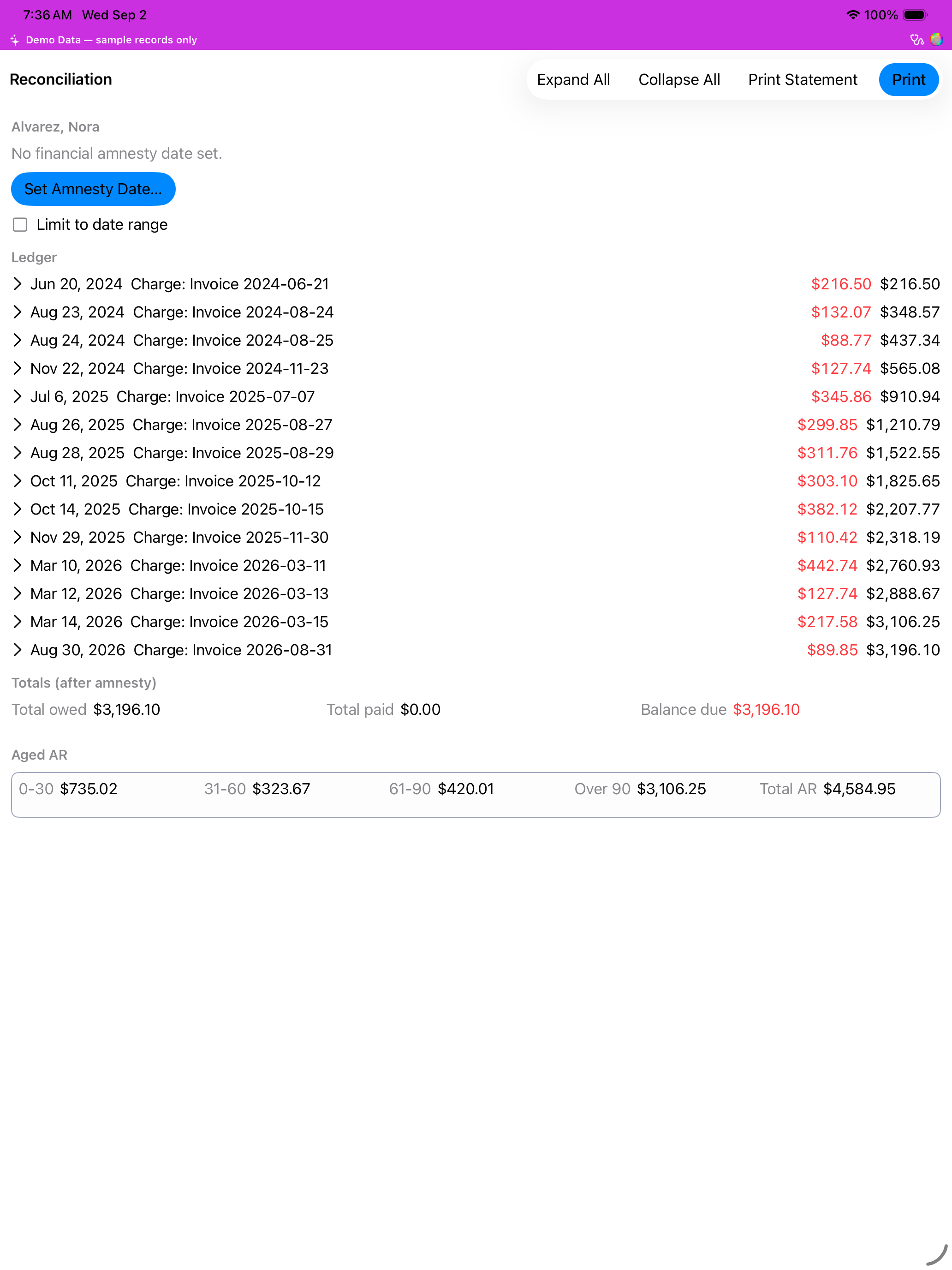
Client Reconciliation
A client's ledger with disclosure triangles on each invoice. Expand a row to see line items, then Print Reconciliation or Print Statement. Expand All and Collapse All control which invoice boxes print.
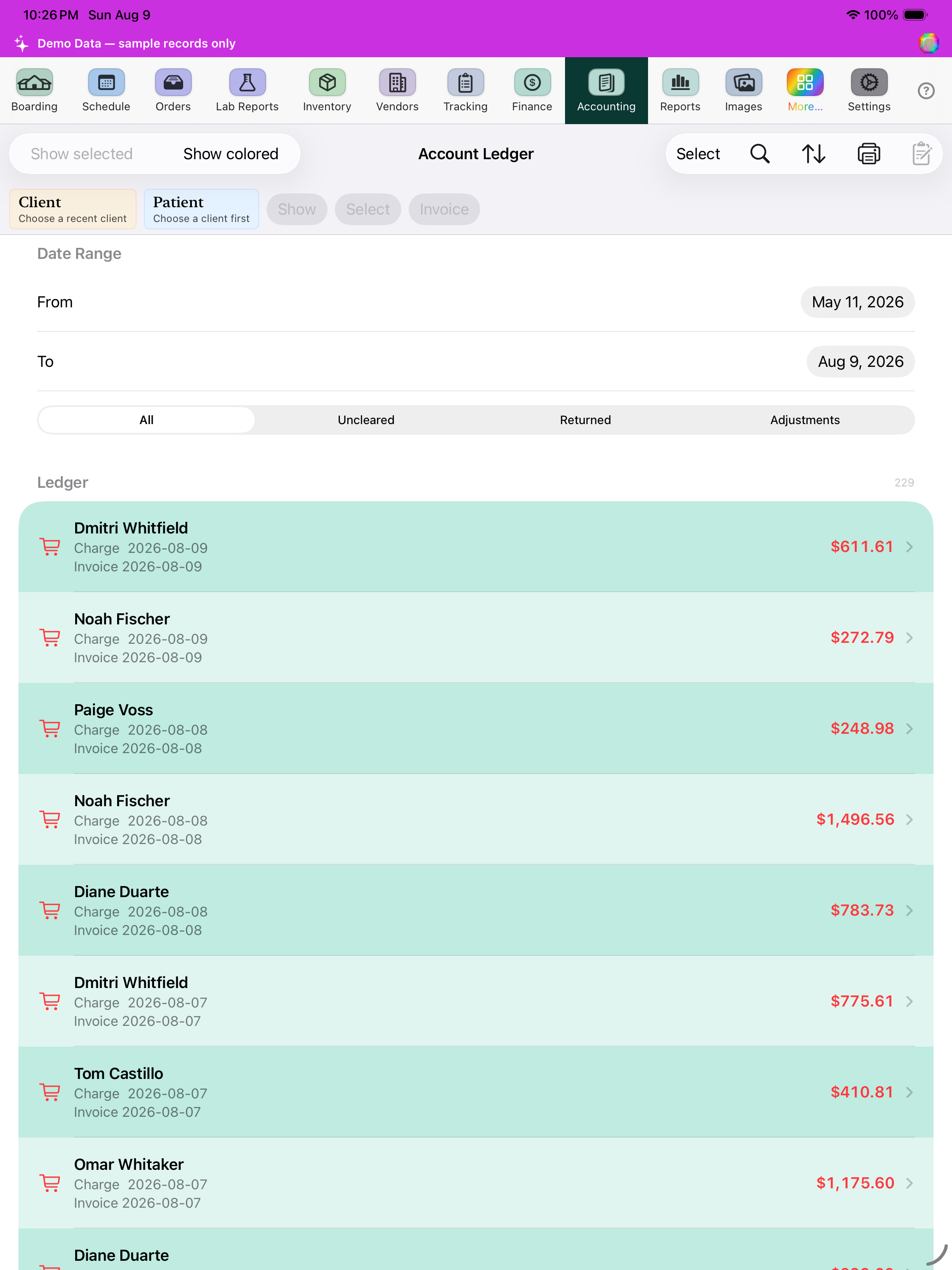
Accounting Records
The account ledger — a running record of every posted transaction.
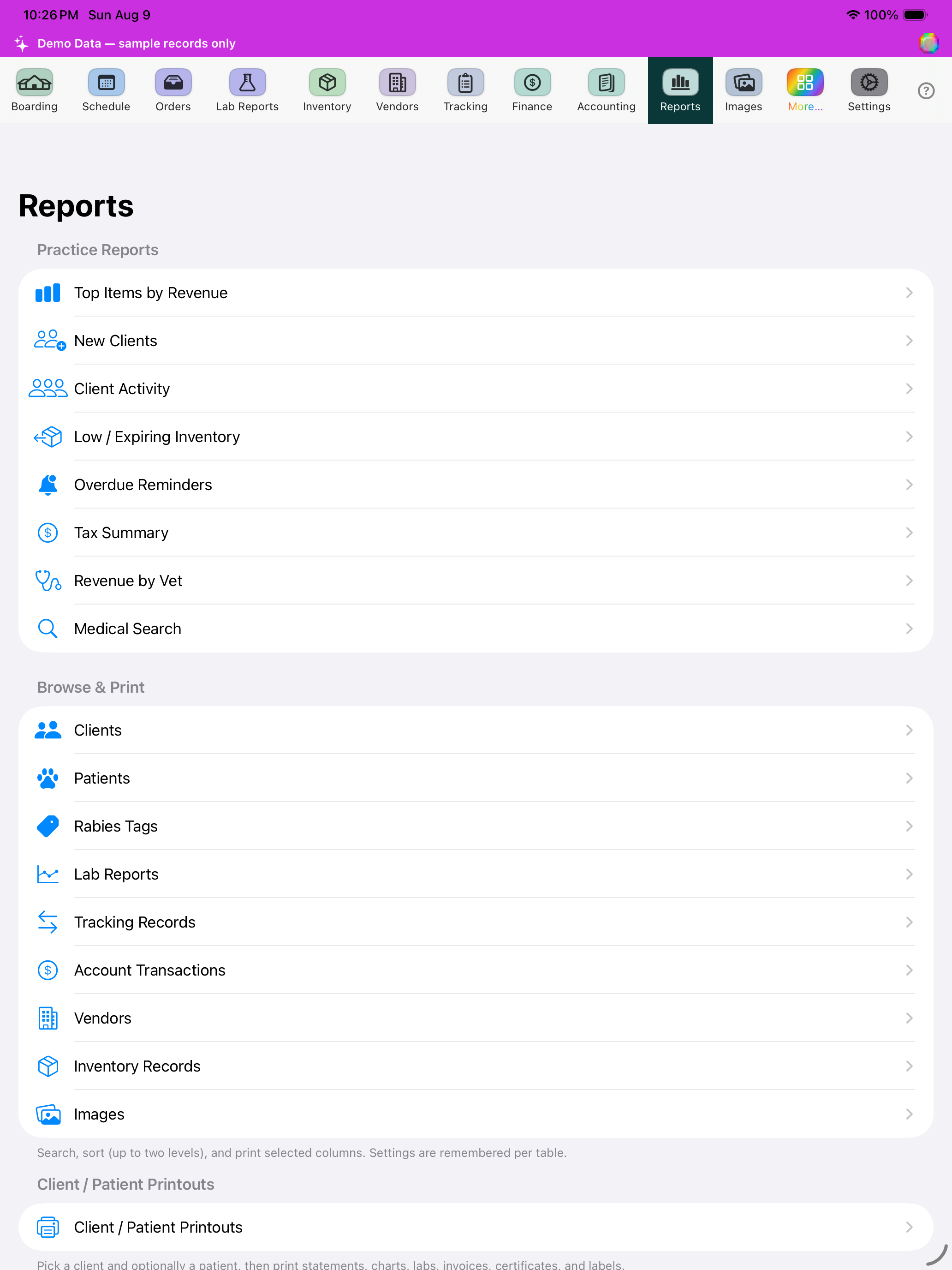
Reports
Practice Reports plus books reports (cash book, profit and loss, categories, recurring bills). Financial Calendar is the Finance tab.
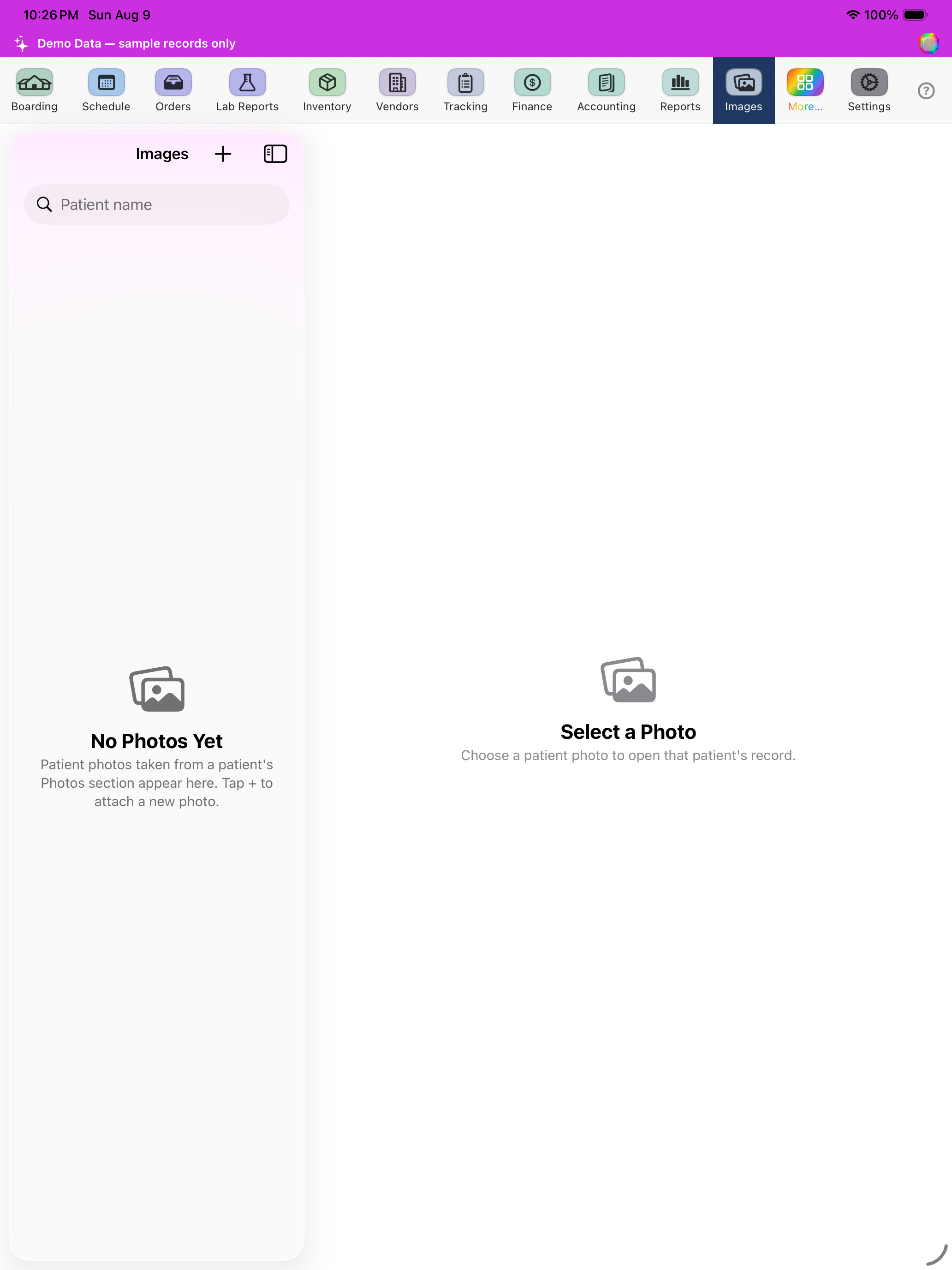
Images
Every photo attached to a patient or record, browsable across the whole practice.
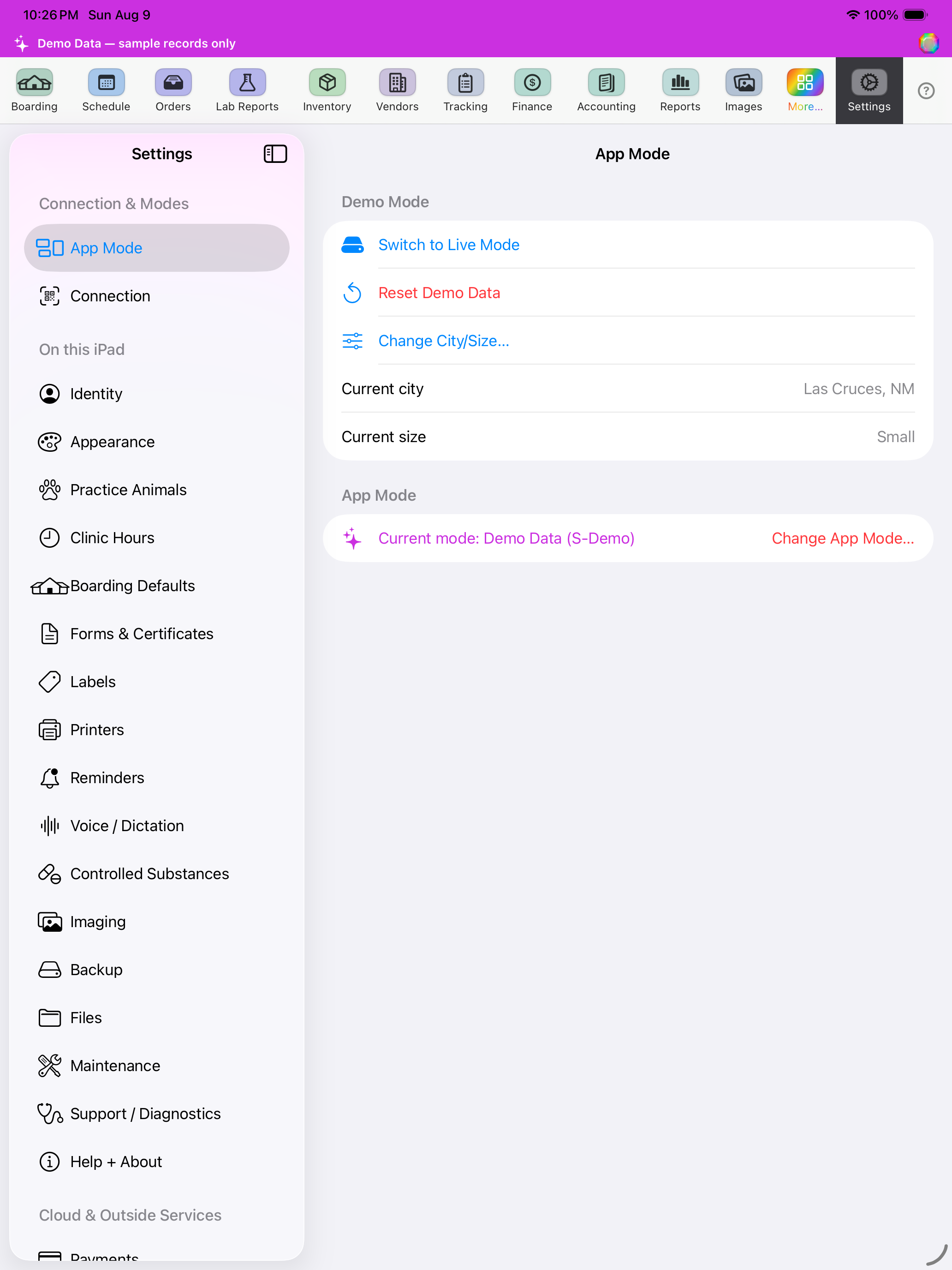
Settings
Settings — App Mode
Switch between Standalone, Mode A (Wi‑Fi sync), and Mode C (live server), and see which mode this iPad is in.
Settings — Connection
How this iPad reaches the practice's Mac — host, port, and connection health.
Settings — Appearance
Date format, font scaling, and browse-row color preview.
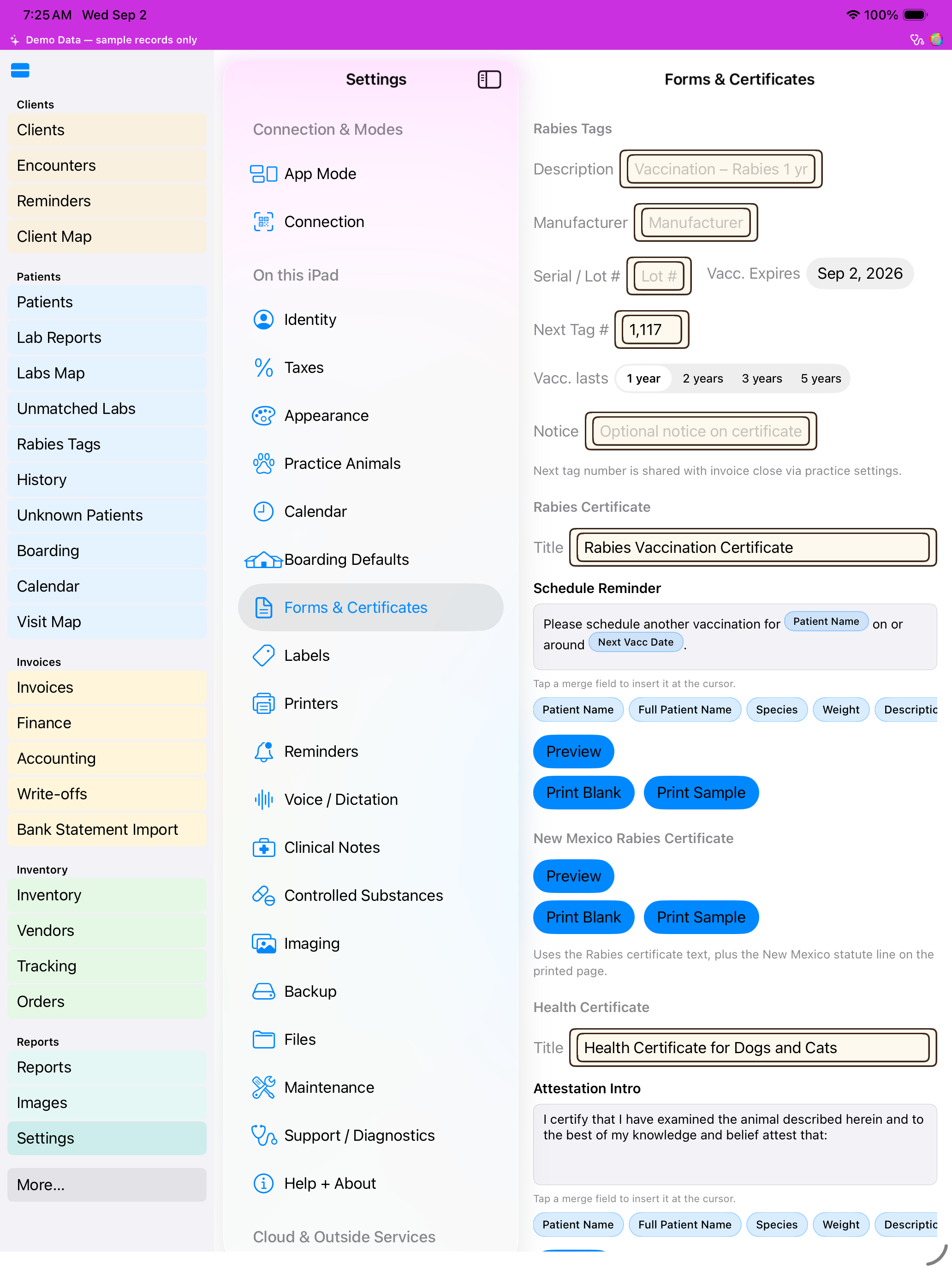
Settings — Forms & Certificates
Certificate and form layouts used when printing from an invoice or patient record. Each certificate tab has Preview, Print Blank, and Print Sample. The Prescription Pad section prints a half-sheet Rx pad.
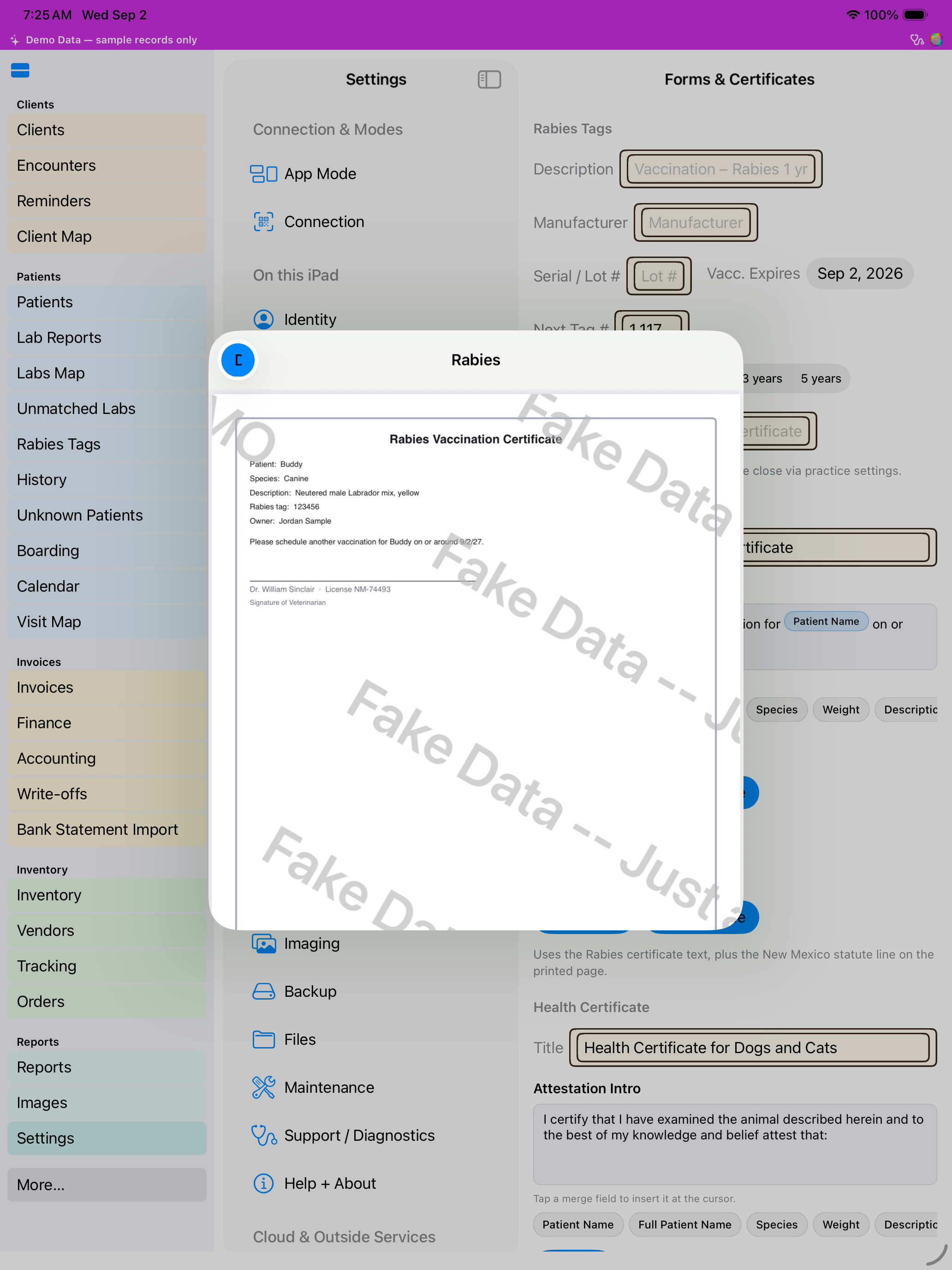
Settings — Labels & Printers
Prescription and specimen label layouts.
Settings — Printers
The remembered default AirPrint printer for each document type.
Settings — Voice / Dictation
Choose whether spoken commands go through Siri, on-device WhisperKit dictation, or both — and pick the WhisperKit model tier for this iPad.
Settings — Backup & Files
Encrypted Standalone backup for the practice’s own records. Print the Recovery Sheet (24 words + QR) and save the file to Files or iCloud Drive.
Settings — Support & Diagnostics
Diagnostic snapshots and network checks to help track down a problem.
Settings — Payments
Card payment processor credentials (Square) for taking payment on this iPad.
Settings — Help & About
Turn Help Mode on or off, and see the app version and build.
More Information
WolfieAssist is built and maintained by the same team as WolfiePIMS for Mac. Learn more about the full practice management system at wolfiepims.com, or read about how workstations reach a clinic remotely at wolfiepims.net.